Multiplayer
FishNet Multiplayer Addon
Make FBSystem scenes and players multiplayer-ready with the optional FBSystemFishNet addon: client-authoritative movement, animator and item sync, networked world items, and a dedicated Setup Wizard.
On this page
- What the addon does
- Requirements
- 1. Install FishNet and the addon
- Video: FishNet quick setup
- 2. FishNet Setup Wizard
- Step 1: Scene Setup
- Step 2: Select Player
- Step 3: FishNet Components
- Step 4: World Items
- Step 5: Validation
- 3. Networked world items
- What gets synchronized
- Not included by design
- Testing host & remote client
- Host test in the editor
- Remote-client test
- Troubleshooting
What the addon does#
An optional package that lives in Assets/FBSystemFishNet/. It turns any scene and any FBSystem player into a FishNet-multiplayer setup without touching the base package.
- A 5-step Setup Wizard wires the NetworkManager, the player bridge and world items. Every step is idempotent: existing objects are reused.
FishNetPlayerBridgesyncs movement, animator state, look pitch and item equipment, and auto-discovers owner-only components (ItemSwitcher,PlayerInteraction,PlayerDropSystem).FishNetFPCutterVisibilityhides the head for the local player (no FP clipping) and shows the full body on every remote.- A drag-and-drop world-item window creates
_Netvariants, registers them, and fills the bridge prefab list. - A prepared demo scene is included.
Requirements#
| Requirement | Version | Notes |
|---|---|---|
| FBSystem | v1.6.0 | base asset must already be in the project; add-on packages from older versions do not compile against 1.6 |
| FishNet | 4.7.2 | install before importing FBSystemFishNet — FishNet is not bundled in the addon |
| Unity | 6000.5.0+ (Unity 6.5) | same as the base asset |
| Render Pipeline | URP | inherited from the base asset (demo + FPCutter) |
1. Install FishNet and the addon#
- Import FishNet (4.7.2) into your Unity project.
- Import the optional
FBSystemFishNetaddon folder or package. - Open the scene you want to make multiplayer-ready.
Video: FishNet quick setup#
The five wizard steps from an empty scene to a host test.
Open on YouTube (opens in a new tab) if the embed is blocked. Video ID: BN9u25nHWHw
2. FishNet Setup Wizard#
Menu: Tools ▸ FBSystem ▸ FishNet ▸ Setup Wizard. The wizard has five steps with a progress bar, < Back and Next > buttons, and Finish Setup on the last step. It lives only in Assets/FBSystemFishNet and does not change core files under Assets/FBSystem. To export the addon as a .unitypackage, export only the FishNet folder.
Step 1: Scene Setup#
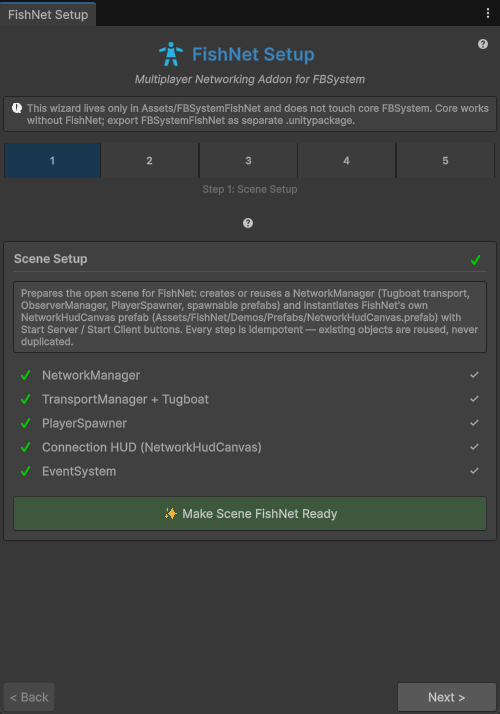
Prepares the open scene as a FishNet host:
- Creates or reuses a
NetworkManagerwith Tugboat transport (default port 7770),ObserverManager,PlayerSpawner, spawnable-prefab wiring and anEventSystem. - Instantiates FishNet's own
NetworkHudCanvasprefab (Assets/FishNet/Demos/Prefabs/NetworkHudCanvas.prefab) for Start Server and Start Client. If the FishNet demos were removed, the wizard warns: restore the prefab. - All status rows turn green:
NetworkManager,TransportManager + Tugboat,PlayerSpawner,Connection HUD,EventSystem. The button ✨ Make Scene FishNet Ready runs this step.
Step 2: Select Player#
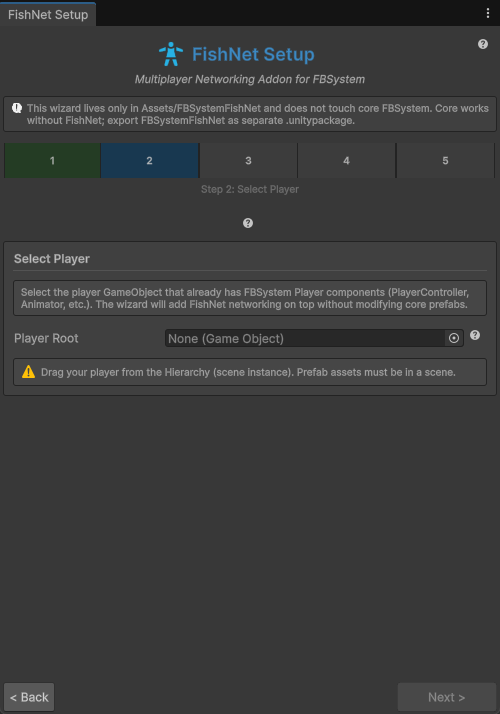
Select the FBSystem player GameObject from the Hierarchy. It must be a scene instance, not a plain prefab asset, and must carry PlayerController, Animator and the other components. The wizard adds NetworkObject and FishNetPlayerBridge, and reconfigures the bridge if it already exists.
- Field
Player Root:None (Game Object). Drag the instance from the scene into it. - Yellow hint: Drag your player from the Hierarchy (scene instance). Prefab assets must be in a scene.
- If you use FPCutter,
FishNetFPCutterVisibilityis wired automatically: the head is hidden locally and fully visible remotely.
Step 3: FishNet Components#
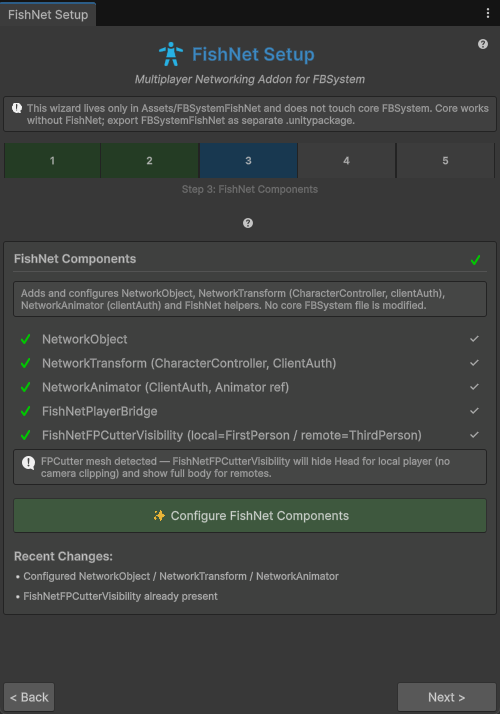
Adds and configures the network components without changing core FBSystem files:
NetworkObject,NetworkTransform (CharacterController, ClientAuth),NetworkAnimator (ClientAuth, Animator ref),FishNetPlayerBridgeandFishNetFPCutterVisibility (local = FirstPerson / remote = ThirdPerson), each with a green check.- When an FPCutter mesh is detected, the info line reads: FPCutter mesh detected — FishNetFPCutterVisibility will hide Head for local player (no camera clipping) and show full body for remotes.
- Button ✨ Configure FishNet Components. The Recent Changes list then shows
Configured NetworkObject / NetworkTransform / NetworkAnimatorandFishNetFPCutterVisibility already present.
Step 4: World Items#
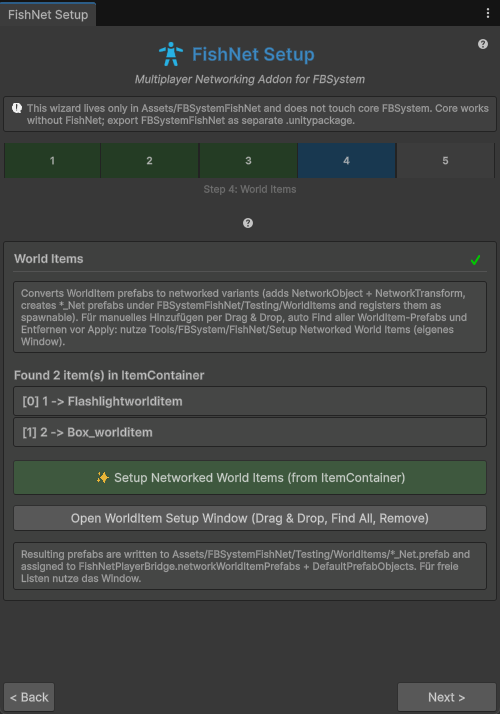
Converts WorldItem prefabs to networked variants: it adds NetworkObject and NetworkTransform, creates *_Net.prefab files under Assets/FBSystemFishNet/Testing/WorldItems/ and registers them as spawnable.
- Example from the screenshot:
Found 2 item(s) in ItemContainer→[0] 1 -> Flashlightworlditem,[1] 2 -> Box_worlditem. - Buttons ✨ Setup Networked World Items (from ItemContainer) and Open WorldItem Setup Window (Drag & Drop, Find All, Remove) for manual management.
- To add items freely by drag and drop, use
Tools ▸ FBSystem ▸ FishNet ▸ Setup Networked World Items(separate window).
Step 5: Validation#
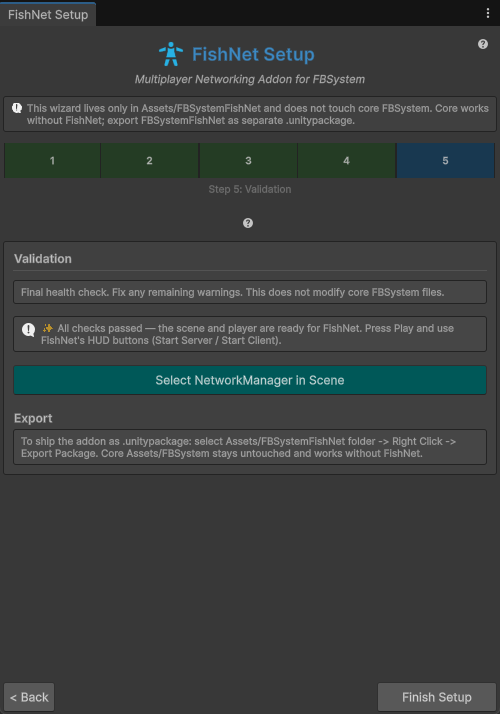
Final health check. Fix any remaining warnings. This step does not change core FBSystem files.
- On success: ✨ All checks passed — the scene and player are ready for FishNet. Press Play and use FishNet's HUD buttons (Start Server / Start Client).
- Button Select NetworkManager in Scene and the Export section: to ship the addon as a
.unitypackage, select theAssets/FBSystemFishNetfolder, right-click, and choose Export Package. The coreAssets/FBSystemfolder stays untouched and works without FishNet. - Close the wizard with Finish Setup. If needed, the wizard generates a
GeneratedPlayers/*_Networkprefab asset, soPlayerSpawnernever holds a scene instance. This fixesPrefabId 65535andNullReferenceerrors on spawn.
Owner-only behaviours (ItemSwitcher, PlayerInteraction, PlayerDropSystem) are detected automatically on the bridge.
3. Networked world items#
Menu: Tools ▸ FBSystem ▸ FishNet ▸ Setup Networked World Items opens a drag-and-drop window (NetworkWorldItemSetupWindow). Use Find All WorldItems and add or remove entries before applying. Auto-Find Bridge and ItemContainer integration are available. The window:
- Creates
_NetWorldItem variants. - Registers them with FishNet.
- Fills the bridge's prefab list on the player.
Pickup despawns the server object. A drop spawns a networked WorldItem that is visible to all clients (server authoritative).
What gets synchronized#
| What | How |
|---|---|
| Root position & rotation | FishNet NetworkTransform, client-authoritative |
| Animator state | FishNet NetworkAnimator |
| Look pitch | networked for camera-dependent remote IK |
| Remote foot planting | runs on each client from the replicated animator state; no separate foot drive state is sent (the PurrNet addon sends one) |
| Equip / unequip | by container slot through HandItemSocket events |
| Item pickup | despawns the server object |
| Item drop | spawns a networked WorldItem for all clients |
Health (PlayerVitals) | not synchronized |
| Camera & input | local-only: PlayerCameraController.SetLocalCameraActive; owner-only local input |
| Server sanity checks | movement validation; item RPCs rejected after an invalid teleport or non-finite transform |
Not included by design#
Testing host & remote client#
The addon ships a prepared test setup. The scene is not in Build Settings, so add it before you build a remote client:
- Scene:
Assets/FBSystemFishNet/Testing/Demo.unity - Player:
Assets/FBSystemFishNet/Testing/FBSystemNetworkPlayer.prefab - Collection:
Assets/FBSystemFishNet/Testing/FBSystemFishNetPrefabs.asset
Host test in the editor#
- Open
Demo.unity. It must contain the FishNetNetworkManagerand itsPlayerSpawner. - Press Play. The HUD shows Start Server and Start Client. Start both for a host test.
- Verify movement, jump, sprint, crouch, root rotation, remote animator state and look pitch. The remote player must not process local input.
- Switch items (number keys,
Q, or scroll) and verify equip/unequip on the other instance. Item use stays local. - Stop the client first, then the server. Check the Console for bridge errors or movement-sanity warnings.
Remote-client test#
- Add
Demo.unityto Build Settings and build it for Windows. - Run the build as the client and the editor scene as the host.
- Start the server in the editor and the client in the build with the HUD buttons.
- Repeat the same verification as above across both instances.
Troubleshooting#
| Symptom | Fix |
|---|---|
PrefabId 65535 / NullReference on PlayerSpawner spawn | Run the wizard's Validation step so PlayerSpawner holds a prefab asset (GeneratedPlayers/*_Network) registered in DefaultPrefabObjects, never a scene instance. |
| No Start Server / Start Client buttons | NetworkHudCanvas comes from FishNet/Demos/Prefabs. If you deleted the demos, the wizard warns: restore NetworkHudCanvas.prefab. |
| Remote head clips in FP / always hidden | The player needs FPCutterController. The addon wires FishNetFPCutterVisibility to hide the head locally and show the full body on remotes. |
| Equip not syncing | Equip must go through ItemContainer slots (HandItemSocket.EquipFromContainer). Direct socket attaches without a slot carry no slot index. |
| Item RPCs rejected | Server sanity check kicked in after an invalid teleport or non-finite transform. Fix the teleport driver before calling item code. |